

If you’re here, you’re probably trying to squeeze every competitive edge out of your setup—whether that means smoother gameplay, sharper reactions, or a more consistent multiplayer performance. In fast-paced games, small optimizations can make a measurable difference, and dialing in the right maximize fps settings is often the first step toward better results.
This guide is built to help you cut through the guesswork. We’ll break down practical optimization tips, explain how different settings impact performance, and highlight the adjustments that matter most for competitive and casual players alike. From graphics configurations to hardware tweaks and in-game meta considerations, everything is focused on improving real gameplay outcomes—not just benchmarks.
Our insights are grounded in hands-on testing, multiplayer analysis, and competitive best practices drawn from high-level play. By the end, you’ll know exactly which changes deliver smoother frames, lower input delay, and a more stable experience—so you can focus on winning, not troubleshooting.
Stuttering gameplay and erratic frame rates can sabotage even high-end rigs—and yes, that includes yours. So, instead of blindly dragging every slider to Low, we’ll move step by step. First, prioritize resolution and render scale; they tax your GPU most. Next, tune shadows and post-processing, which often look cinematic but cost frames (great for story mode, less for ranked). Admittedly, some settings—like texture quality—depend on VRAM, and benchmarks disagree across titles. Still, testing one change at a time reveals your bottleneck. Use built-in monitors to validate maximize fps settings, then iterate. I can’t promise perfection, but this hierarchy consistently delivers.
The Foundation: System-Level Tweaks for Peak Performance
Before you touch in-game sliders, fix your system. This is the non-negotiable first step.
1. Update Graphics Drivers
Your GPU driver is the translator between your game and your hardware. Outdated drivers can cause crashes, stutters, and lower frame rates (yes, even if everything seems fine). Install the latest release from NVIDIA GeForce Experience or AMD Adrenalin. Both suites also apply game-ready optimizations tested for new launches. Skipping this step is like racing on worn tires.
2. Optimize Windows Settings
Enable Game Mode in Windows to prioritize system resources for gaming. Then set your Power Plan to High Performance or Ultimate Performance so your CPU and GPU aren’t throttled. Balanced mode saves energy—but you’re not here to save watts. You’re here to maximize fps settings.
3. Eliminate Background Processes
Close browsers, streaming apps, and disable overlays (Discord, launchers). Extra CPU cycles matter—especially in competitive matches where consistency wins.
The Heavy Hitters: Which Settings Tank Your FPS the Most?
If you want to maximize fps settings without turning your game into a blurry 2005 throwback, you need to target the real performance hogs—not just randomly drag sliders down.
Shadow Quality
First up: Shadow Quality, the undisputed GPU crusher. Dynamic shadows (real-time shadows that shift based on light and movement) force your graphics card to constantly recalculate lighting data. That’s expensive. Dropping from Ultra to Medium can deliver a 20–30% FPS boost in many modern titles, with barely noticeable differences during fast-paced firefights (you won’t be admiring shadow edges mid-rocket jump). Most guides stop at “lower shadows,” but the real edge is tweaking shadow distance separately when available—it often saves more frames than quality alone.
Anti-Aliasing (AA)
Next, Anti-Aliasing, which smooths jagged edges on objects. MSAA (Multisample AA) is sharp but notoriously demanding because it samples geometry multiple times per pixel. TAA (Temporal AA), by contrast, reuses data from previous frames, making it significantly lighter on performance. FXAA is even cheaper but blurrier. For pure FPS, turn AA off. However, for balance, TAA is the modern sweet spot—especially at 1080p.
Resolution
Resolution multiplies pixel count dramatically: 1080p renders ~2 million pixels, 1440p ~3.7 million, and 4K over 8 million. That’s why FPS collapses at higher resolutions. Lowering resolution works—but treat it as a last resort. Instead, use upscaling tech first.
Texture Quality
Finally, Texture Quality depends on VRAM (Video RAM, your GPU’s memory pool). Exceed it and you’ll get stuttering, not just low FPS. Match 6GB cards to Medium/High and 8GB+ to Ultra.
For more performance insights tied to input precision, see controller vs keyboard finding the best control setup.
Fine-Tuning for a Competitive Edge: Smart Sacrifices for Smooth Gameplay
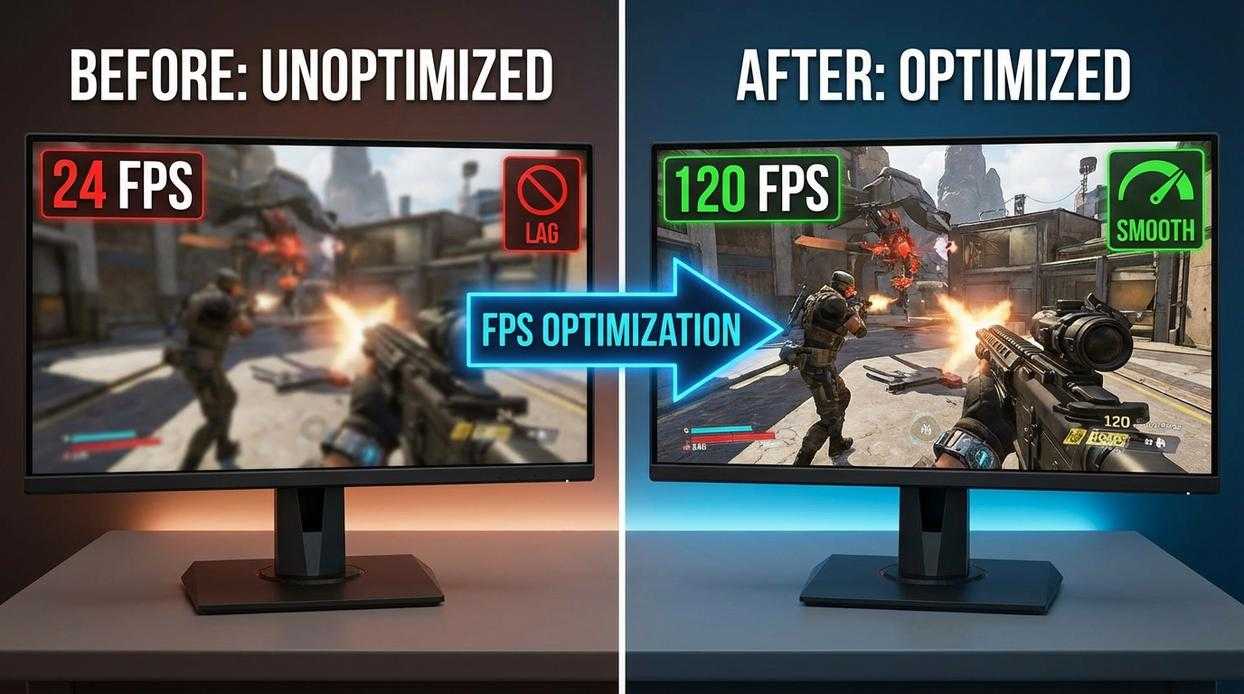
When optimizing for competitive play, the goal isn’t prettier graphics—it’s responsiveness. So let’s clarify which settings actually matter.
First, View Distance (or Draw Distance) controls how far into the game world objects are rendered. In open-world titles, this heavily impacts the CPU (your processor, which handles game logic and world simulation). Ultra settings may look impressive on a mountaintop vista, but during a firefight, those extra trees and shadows offer diminishing visual returns. In most cases, Medium or High is the sweet spot for stable performance.
Next, consider Post-Processing Effects—a group that includes Motion Blur, Bloom, Lens Flare, and Depth of Field. These are cinematic filters layered on top of the image. Motion Blur smears movement, Bloom exaggerates light glow, and Depth of Field blurs distant objects (like a cutscene from a blockbuster shooter). While stylish, they reduce clarity. Pro players disable them not just for FPS gains, but to eliminate visual noise. In short: turn them all off.
Then there’s Ambient Occlusion (SSAO or HBAO+), which adds subtle contact shadows where objects meet, creating depth. It’s visually pleasing—but demanding. Disabling it can yield a noticeable 5–10% FPS boost in competitive matches.
Finally, V-Sync (Vertical Sync) synchronizes your frame rate with your monitor to remove screen tearing. However, it introduces input lag—delay between your action and on-screen response. Always disable V-Sync. Instead, use frame rate limiters or adaptive sync (G-Sync/FreeSync).
These tweaks form the backbone of maximize fps settings—because smooth gameplay wins matches (and nobody ever blamed lag on “too little Bloom”).
The Modern Advantage: Leveraging Upscaling and Monitoring Tools
If you want instant, measurable gains, AI upscaling is your secret weapon. Technologies like DLSS, FSR, and XeSS render your game at a lower internal resolution, then use artificial intelligence to reconstruct a sharper image. The benefit? Massive FPS boosts with minimal visual loss (sometimes it even looks better). Start with the Performance or Balanced preset for the biggest uplift—especially when dialing in maximize fps settings.
Just as important: performance monitoring. Optimization without data is guesswork. Use tools like MSI Afterburner with RivaTuner or NVIDIA’s built-in overlay to see what’s really happening.
Track:
- Average FPS
- 1% lows
- 0.1% lows
Those “lows” measure consistency—the difference between buttery smooth gameplay and random stutters during clutch moments. When you monitor properly, you gain control, stability, and a competitive edge (and fewer rage-inducing drops).
From Stutter to Silky-Smooth: Your New Performance Baseline
First, let’s recap the method. Start system-wide, move to high-impact settings, then fine-tune. In my experience, this hierarchical approach beats random tweaking every time. Instead of guessing, you isolate bottlenecks like CPU throttling or VRAM limits, then adjust in order of impact.
As a result, you’re no longer blindly flipping switches. You have a framework. Apply it to your most demanding title, benchmark before and after, and test your maximize fps settings once changes are stable. Personally, I think nothing feels better than smoother frames and the competitive edge they bring consistently.
You came here to sharpen your edge, fix performance drops, and understand the meta at a deeper level. Now you know how smarter strategy, tighter mechanics, and the right maximize fps settings can completely change your gameplay.
Lag spikes, inconsistent frames, and outdated tactics aren’t just annoying — they cost you ranked points, clutch moments, and competitive momentum. Every millisecond and every decision matters.
The advantage goes to players who optimize both their system and their strategy.
Take Control of Your Competitive Edge
Don’t let poor optimization or weak meta knowledge hold you back. Dial in your maximize fps settings, refine your tactics, and apply the pro-level adjustments you’ve learned here.
Serious players trust our proven gameplay breakdowns, esports-level insights, and performance optimization strategies to stay ahead of the competition. If you’re ready to win more fights, climb faster, and play at your peak — start implementing these changes now and level up your game today.